


Baskey App Documentation
On this page you can find the documentation for all the apps we currently list on the HubSpot marketplace. If you have any questions, please reach out to apps@baskey.eu.
Please select your app:
General Installation & Subscription
Install the desired app through the link on this page or through the app marketplace.
After the installation you have a 14-day free trial version available for your portal.
If you want to buy a subscription, you can click the link in the app settings.
You can get to the App Settings by clicking on the  Settings Icon in the HubSpot menu bar, and then “Integrations“->”Connected Apps“. Click on “Actions” -> “Go to settings“.

After payment, you are redirected to a page where you need to enter the Portal ID of the HubSpot Portal you want this license to be associated with.

You can get the Portal ID from the URL bar of your browser:

PS: If you ever need to uninstall the app within your Portal, your subscription will still stay active when you reinstall the app.
The subscription is linked to your specific portal and normally non transferable. However, if you purchased a year long membership and want to take the app over into another portal just write us @ apps@baskey.eu and we’ll arrange for it in the backend.
Clone a Deal - Workflow Action
Create a deal based workflow and add the Clone A Deal App.
This action allows you to name the cloned deal, utilizing deal tokens to either retain the original name or append a prefix or suffix. Additionally, you have the flexibility to assign a pipeline stage to the new deal. Furthermore, you can customize the action to maintain associations with contacts, companies, and line items. The line items are duplicated and linked to the new deal seamlessly.
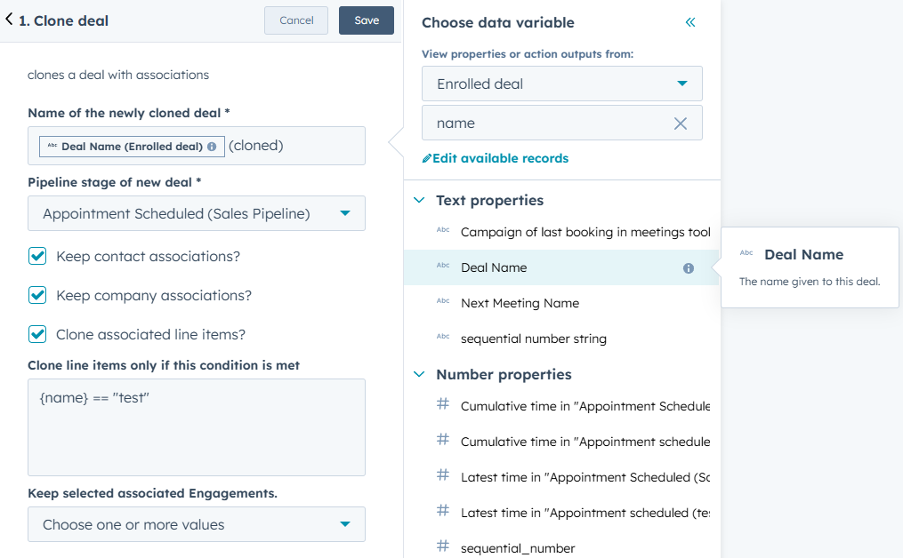
Name of the newly cloned deal: Here you may enter a new name or choose to keep the old name and add a prefix or suffix in order to differentiate the old and the newly cloned deal.
Pipeline stage of new deal: This allows you to assign a pipeline stage to the new deal. It may be different from the old deal’s pipeline stage.
Clone line items only if this condition is met:
To clone only specific line-items, you can use the condition field.
Conditions can be built by using the internal value of a line-item/product property and the following operators:
- == equals
- != not equals
- <= smaller equals
- >= greater equals
- < smaller than
- > greater than
You can also combine different conditions with || (or) and && (and) logic.
So for example this condition only clones line-items which are billed monthly and the price is greater than 10:
{recurringbillingfrequency} == “monthly” && {price} > 10
If you want to clone all line-items, leave this field empty.
Properties need to be surrounded by { } while string values have to be written in “ ”.
Hint / Warning:
If any of the enrolled deal’s line items have a property set to a value that no longer exists an error message will be generated. To deactivate this go to Settings > Integrations > Connected Apps > “Clone A Deal” and activate “Skip invalid properties silently”.

If activated, the line item will be cloned and the property with the previously invalid value will be left empty.
Keep selected associated Engagements:
Here you may select none, one or multiple associated engagements for the cloned deal to keep.
Hint / Warning:
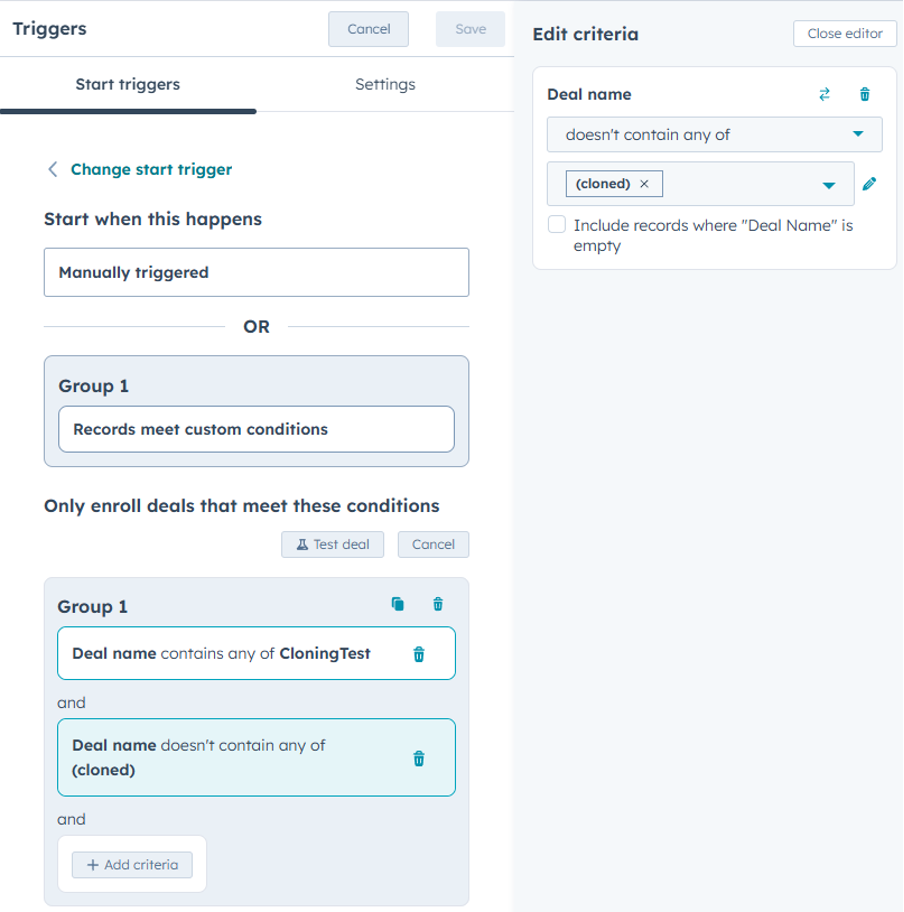
When enrolling multiple deals via a manual trigger on filter criteria like “Deal name contains any of”, while also naming the newly cloned deals after their predecessors (e.g. TestDeal > TestDeal (cloned)) an endless loop will occur, enrolling the newly cloned deals in the same workflow.
To prevent this, it is advised to also set another condition excluding these newly cloned deals.
CRM Card:
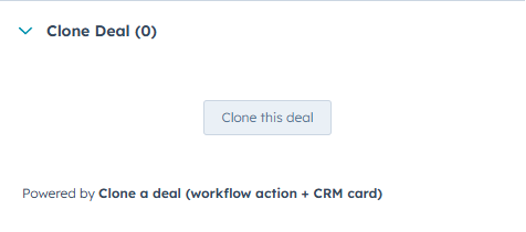
Besides the workflow action, this app also provides a CRM Card visible within the deal and capable of cloning the deal.
By clicking it, the deal at hand gets cloned with all its associations and the same name with “(cloned)” as a suffix.
Limitations:
It takes about 5 minutes to process a 1000 requests. If it takes longer, please contact our support via apps@baskey.eu
Each cloning request produces about 5 HubSpot requests, depending on if you want to keep the associations or not. Please keep in mind that you have a daily limit of api requests for your Portal and that other apps may also consume some of these requests.
Also when opening the workflow action, 2 HubSpot requests are produced to fetch the Deal Pipeline and Stages.
Generate Sequential Numbers - Workflow Action
Create a workflow based on deals, contacts, companies or tickets and add the “Generate Sequential Numbers” App
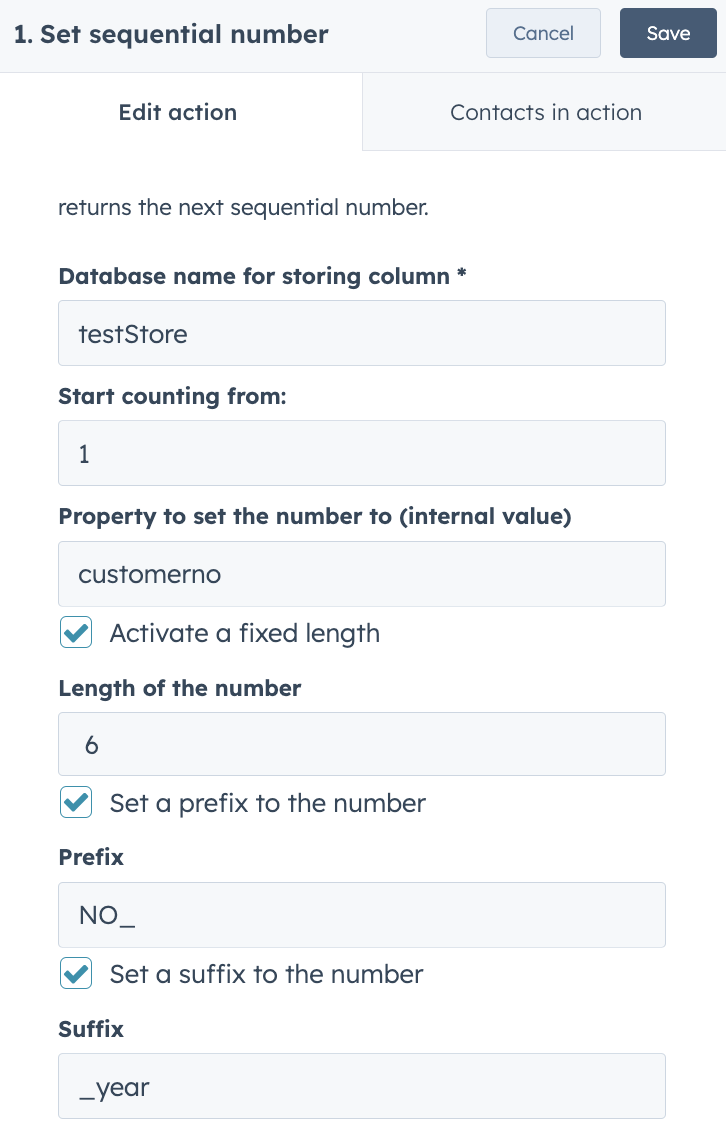
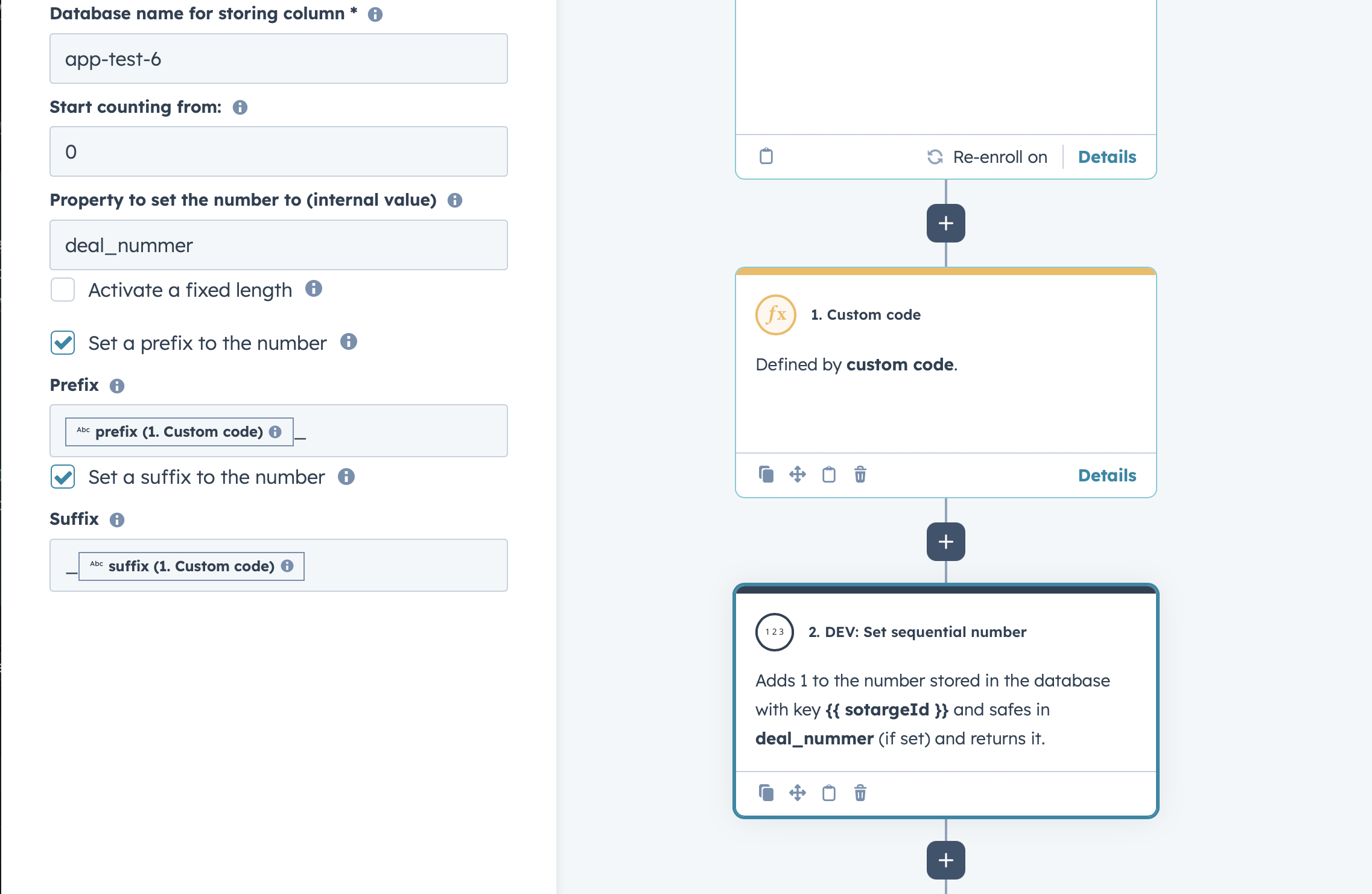
Database name for storing column: This is an arbitrary value associated with the sequential number. This is the key we save your current number in our database to. If you want to use the same number in an additional workflow, you can just set it to the same value. If you want to have multiple sequential numbers, just set this to different values.
Start counting from: This is the number where counting should start.
Property to set the number to: Set this to the internal value of the property you want the number to be saved in. This has to be the internal value of the property of the object your workflow is based on.
You can get the internal value from your property settings.
Length of the number: If you want to count up to a certain value or need for example 6 digit numbers, you can tick this box and enter the desired length in this field. If your starting number is set to 1 and you’ve entered a 6 digit length, 000001 will be your first number.
Prefix/Suffix: If you want the number to have a pre- or suffix, you can just tick the according box and enter the desired text or numbers. If you enter “NO_ ” as a prefix and “_year” as a suffix, your first returned number will be NO_000001_year. PS: This will just add the Prefix and the Suffix to the number. If you want it to be separated, you must also type in the according separators.
PRO TIP! You can also use dynamic and custom code for specifying your needs within the prefix and suffix!
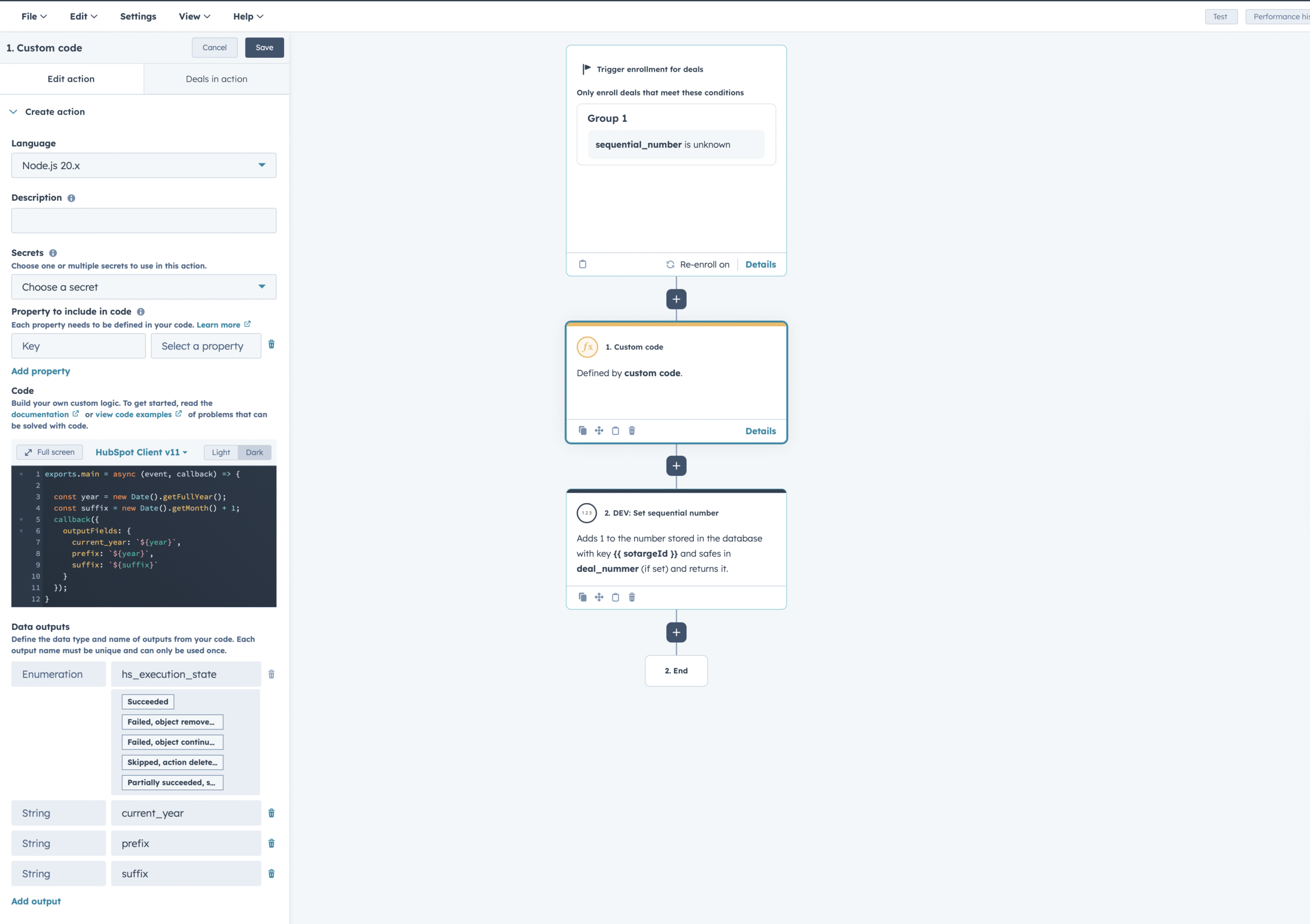
Keep in mind that the number will be returned as a string rather than an integer, which might be relevant for creating the property or further usage of the number.
Create a Quote - Workflow Action
Please keep in mind: HubSpot has recently implemented CPQ quotes (you see those, if you have a Commerce Hub seat). The app currently only supports legacy quotes (you see those, if you have a “normal” Sales Hub seat)! As soon as it becomes technically possible on HubSpot’s side, we will update our app to include CPQ quotes.To learn more about CPQ quotes click here! To learn more about legacy quotes click here!
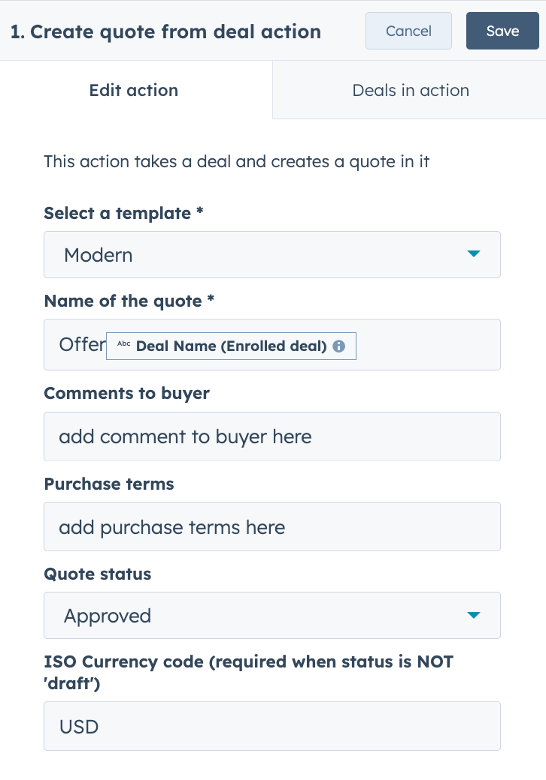
To create a quote within a workflow, first select the template you want to use for your quote.
Then you can enter a name for the quote, here you can also use Deal tokens to personalize the name of the quote. You then add the quote status and the correct ISO currency code.
Optionally you can set the comments to the buyer or the purchase terms. Keep in mind that the currency must align with the one used in your deal.
Create PDF from Quote - Workflow Action
Please keep in mind: HubSpot has recently implemented CPQ quotes (you see those, if you have a Commerce Hub seat). The app currently only supports legacy quotes (you see those, if you have a “normal” Sales Hub seat)! As soon as it becomes technically possible on HubSpot’s side, we will update our app to include CPQ quotes.To learn more about CPQ quotes click here! To learn more about legacy quotes click here!
To create a PDF file from a quote you need to enter the name of the folder/directory you want it to be saved in. You can create those via Content > Files > Create folder. This is also where your PDF will be saved later. If you have not created a directory/folder yet, you can just type /yourfoldername in the workflow action, and the app will create the folder for you.
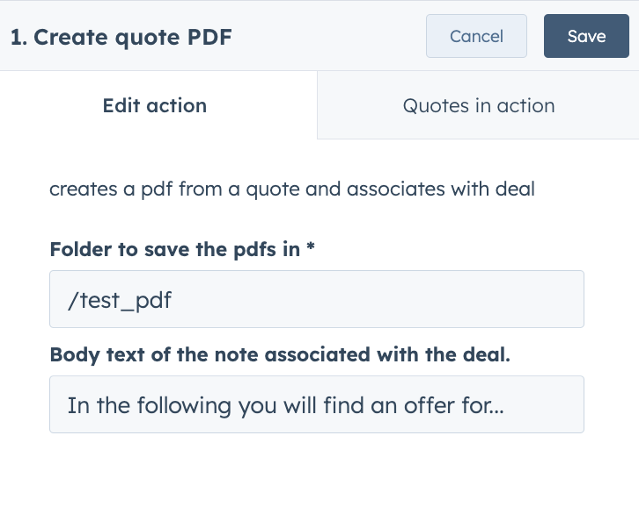
Body Text:
Optionally enter a body text for the note associated with the deal. You can use Deal tokens to personalize the body text, this will help you to find your note later when you use the top right search in HubSpot.
Limitations:
You can only create quotes for deals which have an owner and that are published. You can use the “rotate owner” action from HubSpot to assign an owner in the workflow before this action.
Count Associations - Workflow Action
Create a workflow based on the object type you wish to enroll and add the “Count Associations” Action.
This action allows you to count the number of associations between the enrolled object and the selected object type.
Supported object types include:
- contacts
- companies
- deals
- tickets
- calls
- carts
- conversations
- invoices
- leads
- orders
- quotes
- subscriptions
- tasks
- users
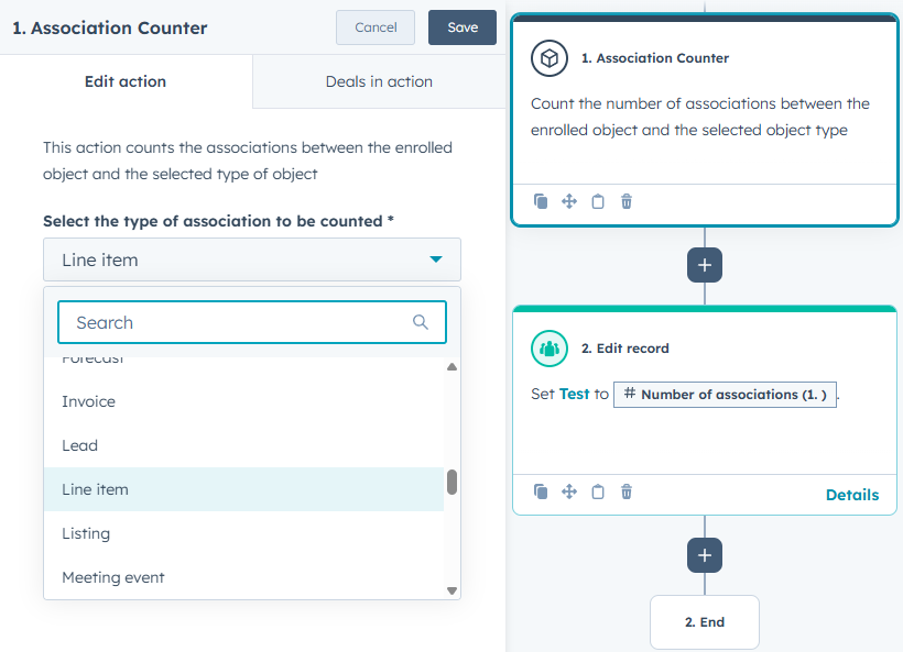
Select the type of association to be counted: This is the object type for which to count the number of associations. You can choose dynamically between all objects that share an association with the enrolled object, even custom objects.
To save the number of associations follow these steps:
- Create a custom property (e.g. Deals > Settings > Manage Deal Properties > Create Property)
- Add the CRM action “Edit record” to the end of the workflow and select the above property to edit
- For “Choose a value” select “Action outputs” and then “Number of associations”

Limitations:
For this workflow you cannot enroll objects of the following types:
- goals
- media
- payments
- survey responses
- custom objects
Each counting request produces 1 HubSpot request. Please keep in mind that you have a daily limit of api requests for your Portal and that other apps may also consume some of these requests.
Also when opening the workflow action, 1 HubSpot request is produced to fetch the list of associated object types.